
Integrating with Asana's MCP Server
This guide walks you through connecting your MCP client to the official Asana MCP server. You'll create an OAuth app in the Asana developer console and use it to authenticate your MCP client.
Overview
The Asana V2 MCP server is generally available and uses OAuth for authorization. You'll pre-register your MCP app in the developer console, where you can create both standard API apps and MCP apps.
V1 Beta Deprecation NoticeThe V1 Beta MCP server
https://mcp.asana.com/sseis deprecated and will shut down on Wed 5 Aug 2026.(extended from the previous date 11 May 2026). Learn more and get migration steps in this changelog post
Important: Tokens issued for MCP apps only work with the MCP server. This separation follows MCP security best practices—if a token is compromised, the blast radius is contained. If you need to make standard Asana API requests, create a separate API app and obtain tokens through the standard OAuth or PAT flow.
Create your OAuth app
Start by creating an OAuth app in the Asana developer console. This app will handle authentication for your MCP client.
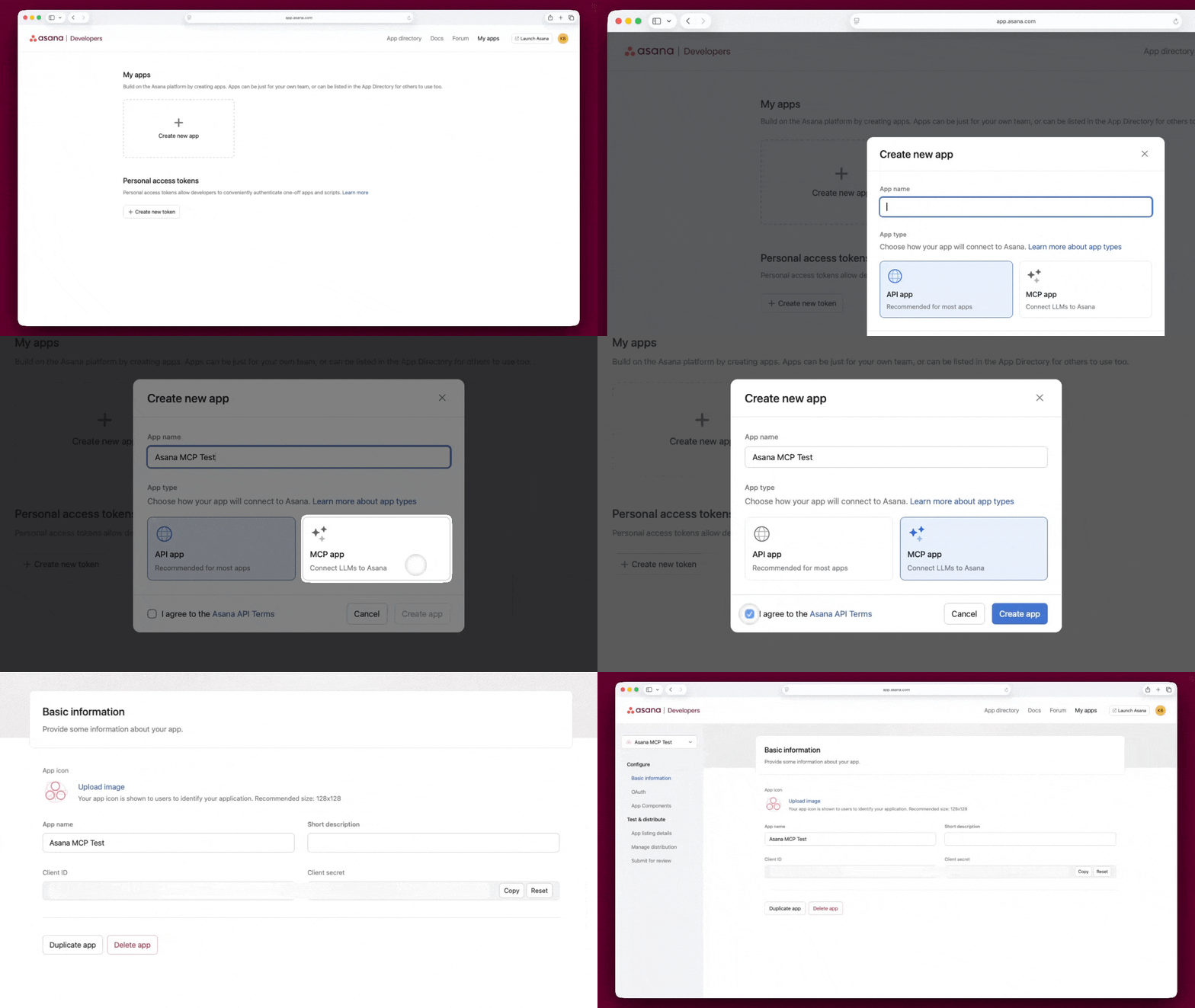
Step 1: Create your app
- Go to the developer console and sign in
- Click "Create new app"
- Enter your app name (e.g., "My MCP Client")
- Select "MCP app" as the app type
- Click "Create app"
You'll see your app's Client ID and Client secret. Keep these handy—you'll need them for authentication.
Client secretYour client secret is a secret, and it should never be shared with anyone or added into source code that others could gain access to. If you need to reset your client secret:
- Select your app in the developer console
- Navigate to the OAuth tab in the sidebar
- Select Reset next to your client secret
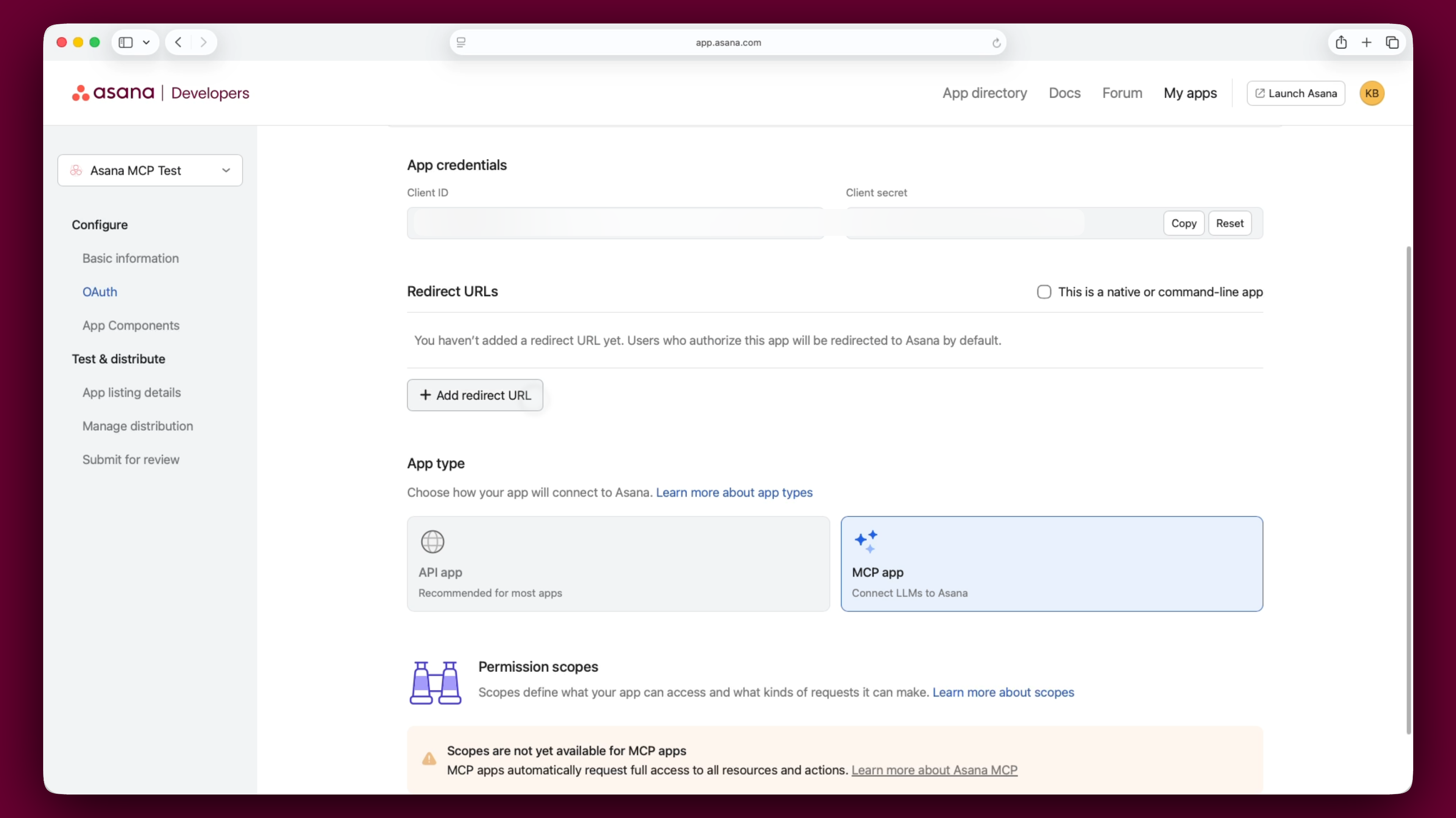
Step 2: Configure OAuth settings
- In the left sidebar, click "OAuth"
- Add your Redirect URL—the callback URL where Asana will send authorization codes
Step 3: Configure workspace access
Configure which workspaces can use your app:
- In the left sidebar, click "Manage distribution"
- Under "Distribution method," choose one of the following:
- Specific workspaces: Select individual workspaces where you want the MCP integration to be usable
- Any workspace: Allow the app to be used in any workspace
- If you selected "Specific workspaces," add the workspace(s) where you want to test
- Click "Save changes"
Important: If you choose "Specific workspaces" but don't select any workspaces, users will see an error saying "This app is not available to your Asana workspace or organization." Make sure to select at least one workspace before testing.
Connect your MCP client
With your OAuth app created, you're ready to connect your MCP client to Asana.
Authorization flow
The MCP authorization flow follows the same process as our existing OAuth authorization flow, with one key difference: the optional resource parameter.
When directing users to the authorization endpoint, you can include the resource parameter to specify the MCP server:
https://app.asana.com/-/oauth_authorize
  ?client_id=YOUR_CLIENT_ID
  &redirect_uri=YOUR_REDIRECT_URL
  &response_type=code
  &resource=https://mcp.asana.com/v2
  &state=RANDOM_STRING
  &code_challenge={SHA256_CHALLENGE}
  &code_challenge_method=S256
Parameters:
resource(optional): The MCP server URL (https://mcp.asana.com/v2)scope(optional): Usedefaultor omit this parameter—MCP apps don't require specific scopes
All other OAuth parameters and steps remain the same as documented in our OAuth guide.
Use the token with MCP
Once you have an access token, configure your MCP client to use it when connecting to the Asana MCP server:
Server URL: https://mcp.asana.com/v2/mcp
Include the access token in the Authorization header of your MCP requests:
Authorization: Bearer YOUR_ACCESS_TOKENRefresh tokens
Access tokens expire after one hour. Use the refresh token to get a new access token without requiring the user to re-authorize. See our OAuth documentation for details on the refresh token flow.
Discovery endpoint
MCP provides an OAuth protected resource metadata document at:
https://mcp.asana.com/v2/.well-known/oauth-protected-resourceThis document:
- Identifies the MCP server URL and supported bearer methods
- Points to Asana's authorization server metadata at
https://app.asana.com/.well-known/oauth-authorization-server
The authorization server metadata includes OAuth endpoints for authorization, token exchange, revocation, and supported grant types. Although these documents can be used to dynamically discover endpoints, clients must still pre-register to get a client id and client secret as described above. Dynamic client registration is not supported with Asana’s V2 MCP Server.
Available MCP tools
The V2 MCP server provides a comprehensive set of tools to interact with Asana.
To view all available tools and their current parameters, use the tools/list MCP command. This ensures your client always has the most up-to-date list of supported tools and their schemas.
NoteThe tool set may evolve over time based on usage patterns and feedback. Tools may be added, updated, or deprecated. To ensure your client always has the most up-to-date list of supported tools and their schemas, use the
tools/listMCP command and subscribe to our developer changelog for updates.
Security and permissions
Token security
Tokens issued for MCP apps only work with the Asana MCP server—you can't use them with the standard Asana API. Keep your tokens secure:
- Store client secrets and all refresh/access tokens securely (never commit them to version control)
- Use HTTPS for all requests
- Implement proper token refresh logic
- Revoke tokens when they're no longer needed
For additional security resources, see:
- OAuth 2.0 Security Best Current Practice
- Prevent Attacks and Redirect Users with OAuth 2.0 State Parameters
Scopes / permissions
Asana MCP access is currently user-based. All actions taken over MCP will appear as the user who authorized them.
All authorizations may access any available MCP tool (at the time of authorization or any tools added in the future). Access is determined by the authenticated user's Asana permissions. The MCP token doesn't grant any permissions beyond what the user already has in Asana, they can only access workspaces, projects, and tasks they already have access to.
Common issues
"This app is not available to your workspace"
This happens when the users's workspace isn't added to your app's distribution settings. Fix it by:
- Going to your app in the developer console
- Navigating to "Manage distribution"
- Selecting "Specific workspaces" and adding the workspace where you want to use the integration, or selecting "Any workspace" to enable it to be used in all workspaces
"Invalid scope(s) requested"
This error appears if you include a scope parameter in your authorization request. MCP apps don't require scopes—remove the scope parameter entirely from your authorization URL.
Authentication failures
If authentication fails:
- Verify your redirect URL matches exactly in both your app settings and authorization request
- Ensure your client ID and client secret are correct
- Check that your app is properly configured in "Manage distribution"
- Make sure you're using the correct authorization and token endpoints
Connection issues
If your MCP client can't connect:
- Verify the MCP server URL is
https://mcp.asana.com/v2/mcp - Check that you're including the access token in your requests
- Verify the access token hasn't expired (they last one hour)
Related resources:
Updated 16 days ago