
Connecting Coding Clients to Asana's V2 server
The V2 MCP server (https://mcp.asana.com/v2/mcp) requires OAuth 2.0 authentication with a registered client ID and client secret. Pre-registration provides better security and gives organizations control over which applications can access their Asana data through app management. This guide shows you how to connect different MCP clients to the V2 server.
Prerequisites
Before connecting any MCP client to Asana's V2 server, you'll need:
1. Create an Asana MCP app
Follow the guide: Integrating with Asana's MCP Server
You'll receive a client ID and client secret - keep these handy for the next step.
2. Make your app credentials available
Configure your credentials as environment variables:
- Open your shell profile:
nano ~/.zshrc # or ~/.bashrc for bash- Add these lines at the bottom (with your credentials substituted in the appropriate place):
export ASANA_CLIENT_ID="YOUR_CLIENT_ID"
export ASANA_CLIENT_SECRET="YOUR_CLIENT_SECRET"-
Save and exit.
-
Restart your terminal and IDE for changes to take effect. You can then verify the setup by running
echo $ASANA_CLIENT_IDand you should see your client ID printed.
Additional precautions:
- Use unique credentials per developer (don't share)
- Rotate credentials regularly
- Never commit your credentials to version control
- Monitor which processes can access your environment
- For production or other sensitive environments, we recommend using a secrets management tool like HashiCorp Vault, AWS Secrets Manager, or 1Password CLI
3. Configure your redirect URL
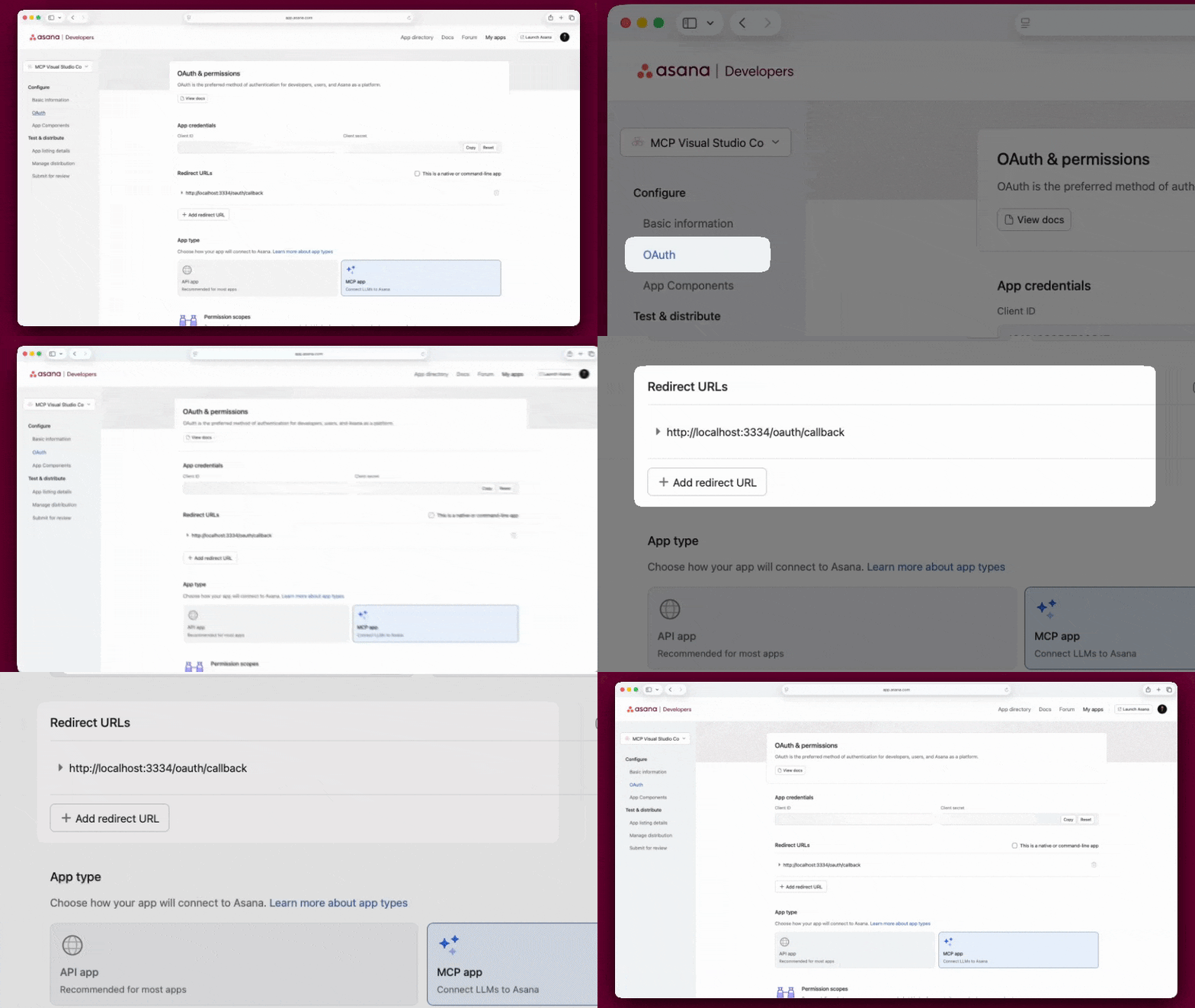
When creating your Asana MCP app, set the OAuth redirect URL in the developer console based on which client you're using:
- Claude Code:
http://localhost:8080/callback - Cursor:
cursor://anysphere.cursor-mcp/oauth/callback - VS Code: Both
http://127.0.0.1:33418/andhttps://vscode.dev/redirect - Most other clients (Windsurf, Kiro, Codex):
http://localhost:3334/oauth/callback
The redirect URL must match exactly between your Asana app settings and your client configuration.
4. Install Node.js and npm
Most clients require Node.js and npm to run mcp-remote. Download from nodejs.org.
Verify the installation by running node --version and npm --version in your terminal.
What is mcp-remote?
mcp-remote is a community-maintained npm package that acts as a bridge between MCP clients and remote OAuth-protected servers. It handles complete OAuth flows including browser-based authorization.
mcp-remoteis experimental software not officially supported by Asana. The project maintainers describe it as "a working proof-of-concept but should be considered experimental."Use at your own risk. We provide these instructions based on current community best practices, but:
- This is not production-grade software
- Asana cannot provide support for mcp-remote issues
- Security and reliability are not guaranteed
- The tool may change or break without notice
We strongly recommend using Claude Code, which has native support for pre-configured OAuth credentials and doesn't require third-party tools.
If you choose to use mcp-remote despite these warnings:
- Review the source code yourself
- Understand you are responsible for any security or functionality issues
- Monitor the repository for updates and security advisories
Repository: github.com/jms830/mcp-remote
Claude Code
You can connect Claude Code to Asana's V2 MCP server natively thanks to its support for OAuth pre-registration.
1. Prerequisites
- Claude Code installed (download)
- An Asana MCP app created (create one)
- Your Client ID and Client secret from the Asana developer console
2. Add Asana MCP server to Claude Code
Open your terminal and run:
claude mcp add --transport http \
  --client-id YOUR_CLIENT_ID \
  --client-secret \
  --callback-port 8080 \
asana https://mcp.asana.com/v2/mcp- Replace
YOUR_CLIENT_IDwith your actual Asana Client ID. - Wait for the prompt: After you hit Enter, Claude Code will ask you to enter you OAuth Client Secret.
- Paste your secret there. It will be hidden as you type and stored securely in your local configuration.
3. Authorize the connection
After running the command:
- Claude Code will open your browser
- Sign in to Asana if not already signed in
- Review the permissions request
- Click "Allow access"
- You'll be redirected back to Claude Code
The browser window will close automatically and you'll see a success message in the terminal.
4. Verify the connection
Start Claude Code chat:
claudeTest the Asana connection by asking:
Show me my Asana tasks due this weekIf the connection is working, Claude will use the Asana MCP tools to fetch your tasks.
Configuration details
Claude Code stores MCP server configuration in:
- User-level:
~/.claude.json - Project-level:
.mcp.json(in your project directory)
These files contain only non-sensitive configuration metadata (server URLs, transport types, client ID), not your credentials.
Your client secret will be stored securely in your system keychain.
Cursor
Cursor connects to Asana's V2 MCP server using its built-in Static OAuth support.
1. Prerequisites
Complete the setup prerequisites before continuing with these client-specific steps.
2. Configure Cursor
- Open Cursor Settings:
Cmd+,(Mac) orCtrl+,(Windows/Linux) - Click "Cursor Settings"
- Scroll to "Tools & MCP" section
- Click "+ Add new global MCP server" and add the following configuration:
{
  "mcpServers": {
    "asana": {
      "url": "https://mcp.asana.com/v2/mcp",
      "auth": {
        "CLIENT_ID": "${env:ASANA_CLIENT_ID}",
        "CLIENT_SECRET": "${env:ASANA_CLIENT_SECRET}"
      }
    }
  }
}
3. Authorize the connection
After saving the configuration, go back to the Cursor Settings tab. You'll see the asana MCP server listed with a Connect button next to it. Click Connect to start the OAuth flow:
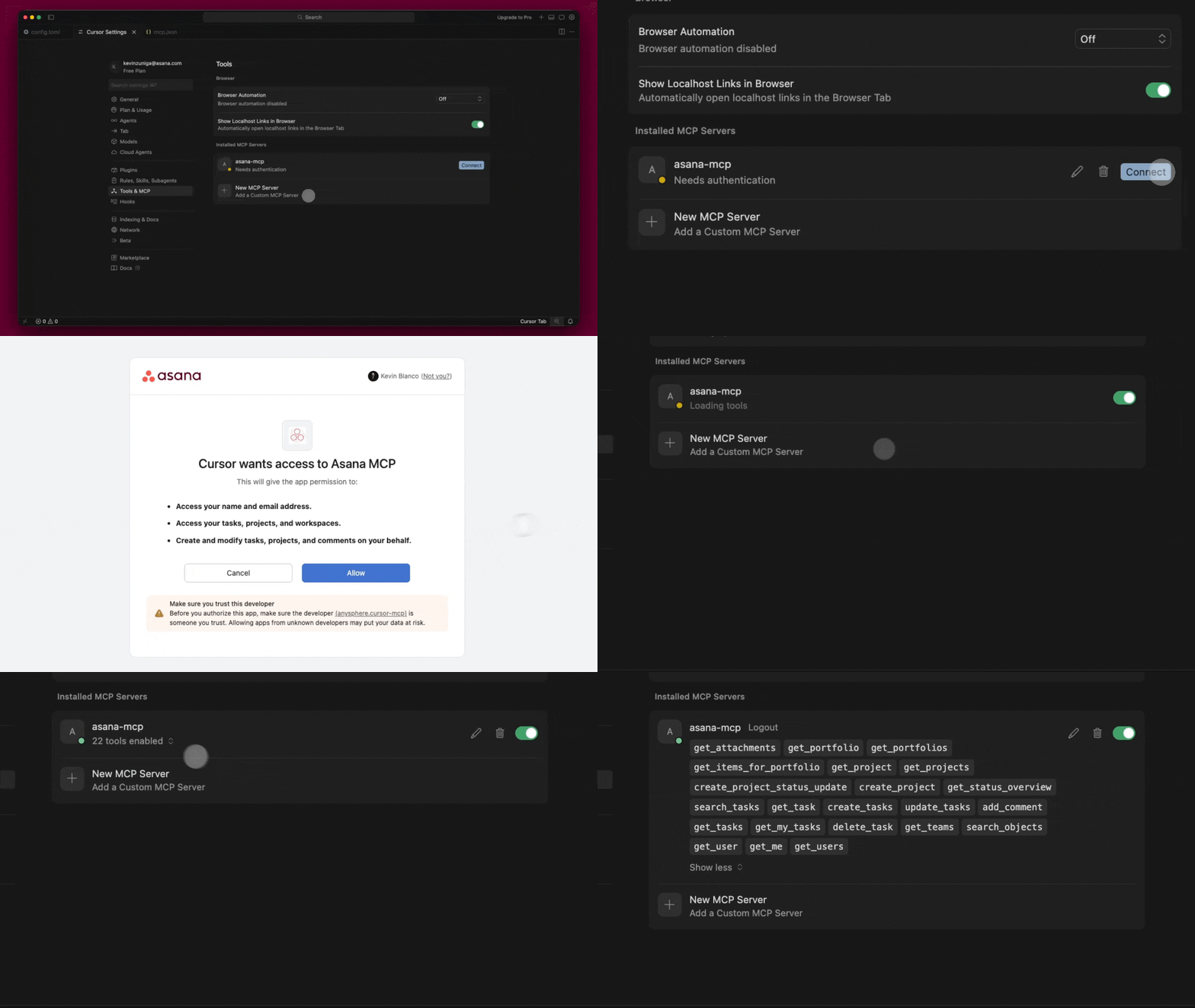
- Your browser will open to Asana's authorization page
- Sign in to Asana if not already signed in
- Review the permissions and click "Allow"
- The browser redirects back to Cursor via the
cursor://protocol handler - Return to Cursor — you should see the server status change to connected
4. Test the connection
Open a new agent window in Cursor code and ask about your Asana projects, for example: Show my Asana tasks due this week.
References
VS Code
VS Code connects to Asana's V2 MCP server natively through its built-in OAuth support.
1. Prerequisites
Complete the setup prerequisites before continuing with these client-specific steps.
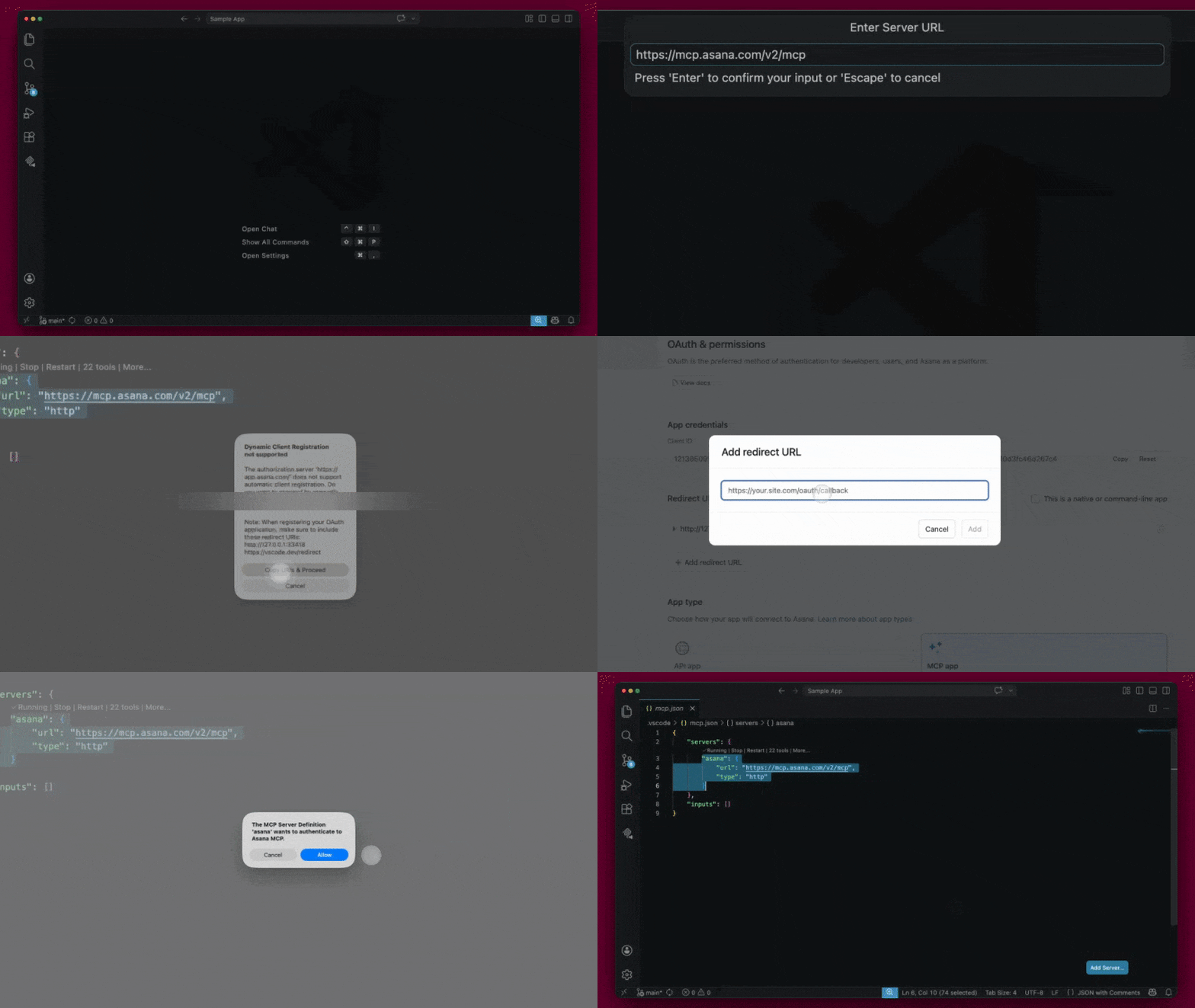
2. Set the redirect URLs
In the Asana developer console, set your MCP app's OAuth redirect URLs. VS Code requires both of the following redirect URLs:
http://127.0.0.1:33418/https://vscode.dev/redirect
The localhost redirect URL must include the trailing slash (
http://127.0.0.1:33418/). VS Code's setup flow provides a button to copy these URLs, but the copied value may be missing the trailing slash — verify it before saving.
The redirect URLs must match exactly between your Asana app settings and what VS Code sends during the OAuth flow.
3. Add the Asana MCP server
- In VS Code, open the Command Palette:
⌘⇧P(Mac) orCtrl+Shift+P(Windows/Linux) - Type
mcpin the search field to see all available MCP commands - Select MCP: Add Server to start the configuration flow
- When prompted for the server type, select HTTP
- Enter the MCP server URL:
https://mcp.asana.com/v2/mcpand press Enter - Enter a name for the server:
asanaand press Enter - When asked about the scope, select Workspace (recommended) or Global depending on your preference
4. Provide your client credentials
VS Code will detect that Asana's authorization server does not support dynamic client registration and prompt you to provide your credentials manually.
- VS Code displays a message with the required redirect URLs — verify these match what you configured in step 2 and click the button to proceed with the authentication flow
- Enter your Client ID and press Enter
- Enter your Client Secret and press Enter
5. Authorize the connection
After entering your credentials, VS Code triggers the OAuth flow:
- Your browser opens to Asana's authorization page
- Sign in to Asana if not already signed in
- Review the permissions and click "Allow"
- You'll be redirected back to VS Code
Authentication is now complete. VS Code securely stores your credentials and manages token refresh automatically.
6. Test the connection
Open a new chat window in VS Code and ask about your Asana projects, for example: Show my Asana tasks due this week.
References
- VS Code MCP documentation
- Clear MCP authentication (e.g., to switch from
mcp-remoteor fix a stale token)
Codex
Codex can connect to Asana's V2 MCP server using the mcp-remote proxy tool.
1. Prerequisites
Complete the setup prerequisites before continuing with these client-specific steps.
2. Install Codex CLI
Install the Codex command-line interface globally:
npm install -g @openai/codexVerify installation:
codex --version3. Initialize Codex MCP
Run the Codex MCP setup command:
codex mcpThis creates the Codex configuration directory and files if they don't already exist.
4. Create a credentials file
Create a JSON file containing your Asana MCP app credentials. Store it somewhere private and stable, for example ~/.asana/mcp_oauth_client.json:
{
  "client_id": "YOUR_CLIENT_ID",
  "client_secret": "YOUR_CLIENT_SECRET"
}
Restrict the file so only your user can read it:
chmod 600 ~/.asana/mcp_oauth_client.json
This file contains a secret. Never commit it to version control, and follow the same precautions listed in the setup prerequisites (unique credentials per developer, regular rotation, a secrets manager for sensitive environments).
5. Configure Asana MCP server
Edit the Codex configuration file:
Location: ~/.codex/config.toml
Add the following lines and save the file. Replace the path with the absolute path to the credentials file you created — ~ is not expanded here:
[mcp_servers.asana]
command = "npx"
args = [
  "-y",
  "mcp-remote@latest",
  "https://mcp.asana.com/v2/mcp",
  "3334",
  "--static-oauth-client-info",
  "@/Users/YOUR_USERNAME/.asana/mcp_oauth_client.json",
  "--resource",
  "https://mcp.asana.com/v2"
]
Important notes:
- Codex uses TOML format (not JSON).
- The
@prefix tellsmcp-remoteto read the client credentials from the file at runtime. This keeps your client secret out of the process command line, where it would otherwise be visible to local process-inspection and diagnostic tools. - Use an absolute path after
@. The file is read directly bymcp-remote(no shell is involved), so~and environment variables are not expanded. mcp-remotestores OAuth tokens in~/.mcp-auth/after you authorize.
6. Authorize in Codex settings
- Open Codex settings and navigate to the MCP servers section
- You should see "Asana" listed as an available server
- Click to connect or enable the Asana server
- The OAuth flow will trigger automatically, your browser will open to Asana's authorization page
- Sign in to Asana if not already signed in and review the permissions and click "Allow access"
- You'll be redirected to
localhost:3334then return to Codex
The connection is now active and authentication is stored in ~/.mcp-auth/.
7. Test the connection
In Codex, try asking:
Create a task in my Asana project called "Documentation"References
Windsurf
Windsurf can connect to Asana's V2 MCP server using the mcp-remote proxy tool.
1. Prerequisites
Complete the setup prerequisites before continuing with these client-specific steps.
2. Configure Windsurf MCP
- Open Command Palette:
Cmd+Shift+P(Mac) orCtrl+Shift+P(Windows/Linux) and run the MCP Marketplace command. - On the MCP Marketplace, find the gear icon in right corner of the "Installed MCP" area, this will open the
mcp.jsonfile, in that file add the following configuration:
{
  "mcpServers": {
    "asana": {
      "type": "stdio",
      "command": "npx",
      "args": [
        "-y",
        "mcp-remote@latest",
        "https://mcp.asana.com/v2/mcp",
        "3334",
        "--static-oauth-client-info",
        "{\"client_id\": \"${env:ASANA_CLIENT_ID}\", \"client_secret\": \"${env:ASANA_CLIENT_SECRET}\"}"
      ],
      "env": {
        "ASANA_CLIENT_ID": "${env:ASANA_CLIENT_ID}",
        "ASANA_CLIENT_SECRET": "${env:ASANA_CLIENT_SECRET}"
      }
    }
  }
}
3. Authorize the connection
After adding the configuration above, go back to the "MCP Marketplace" tab and you will see the newly added asana MCP server, then Windsurf will trigger the OAuth flow:
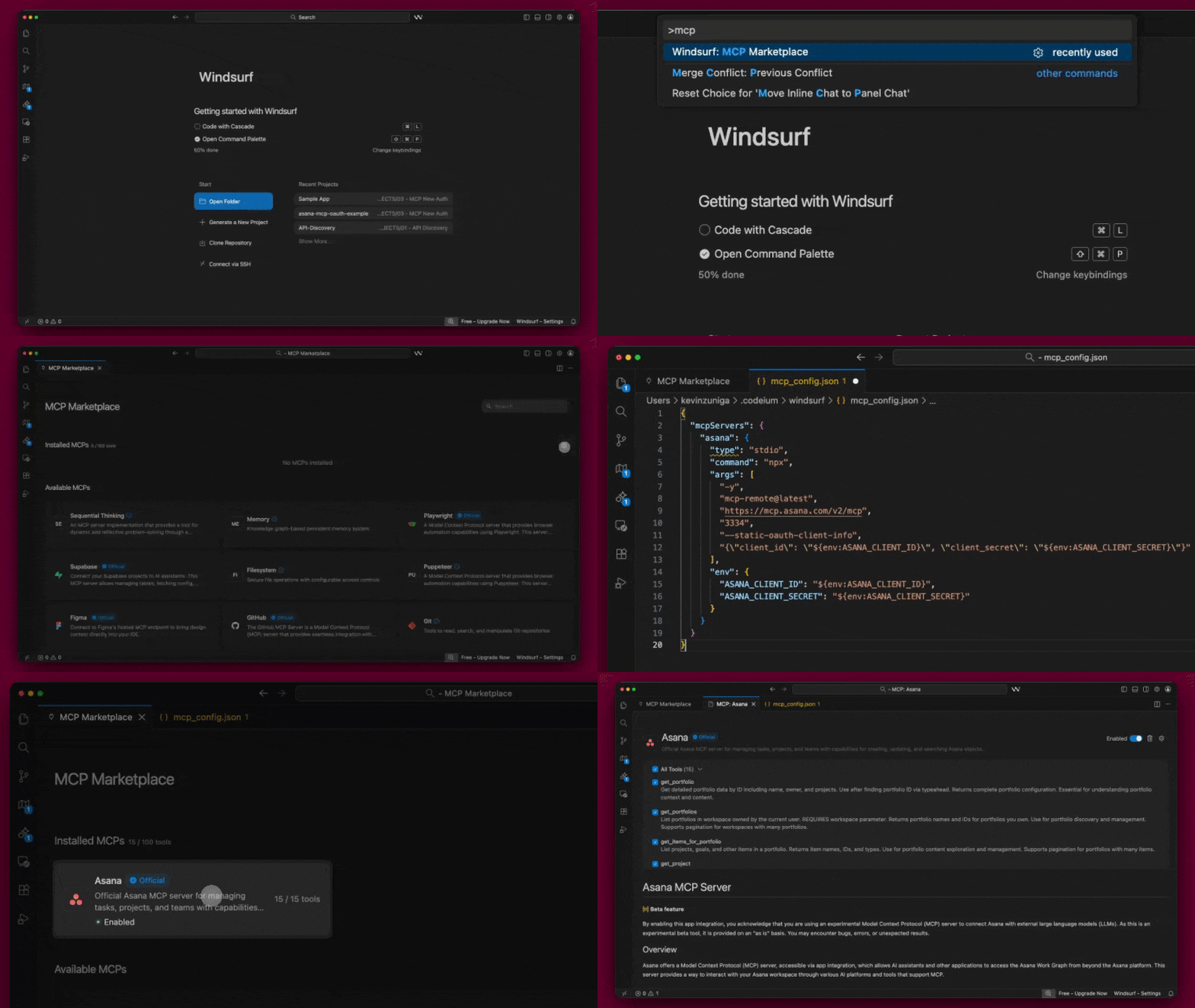
- Your browser will open to Asana's authorization page
- Sign in to Asana if not already signed in
- Review the permissions and click "Allow access"
- You'll be redirected to
localhost:3334and the browser will show a success message - Return to Windsurf
Authentication is now complete and tokens are stored in ~/.mcp-auth/.
4. Test the connection
Open a new Cascade sidebar chat window in Windsurf and ask about your Asana projects, for example: Show my Asana tasks due this week.
References
Kiro
Kiro can connect to Asana's V2 MCP server using the mcp-remote proxy tool.
1. Prerequisites
Complete the setup prerequisites before continuing with these client-specific steps.
2. Configure Kiro MCP
Open Command Palette: Cmd+Shift+P (Mac) or Ctrl+Shift+P (Windows/Linux) and run the Kiro: Open MCP Config command, this will open the mcp.jsonfile, in that file add the following configuration:
{
  "mcpServers": {
    "asana": {
      "type": "stdio",
      "command": "npx",
      "args": [
        "-y",
        "mcp-remote@latest",
        "https://mcp.asana.com/v2/mcp",
        "3334",
        "--static-oauth-client-info",
        "{\"client_id\": \"${env:ASANA_CLIENT_ID}\", \"client_secret\": \"${env:ASANA_CLIENT_SECRET}\"}"
      ],
      "env": {
        "ASANA_CLIENT_ID": "${env:ASANA_CLIENT_ID}",
        "ASANA_CLIENT_SECRET": "${env:ASANA_CLIENT_SECRET}"
      }
    }
  }
}
3. Authorize the connection
After adding the configuration above and saving it, you will see the OAuth flow triggering in the MCP Logs Output window.
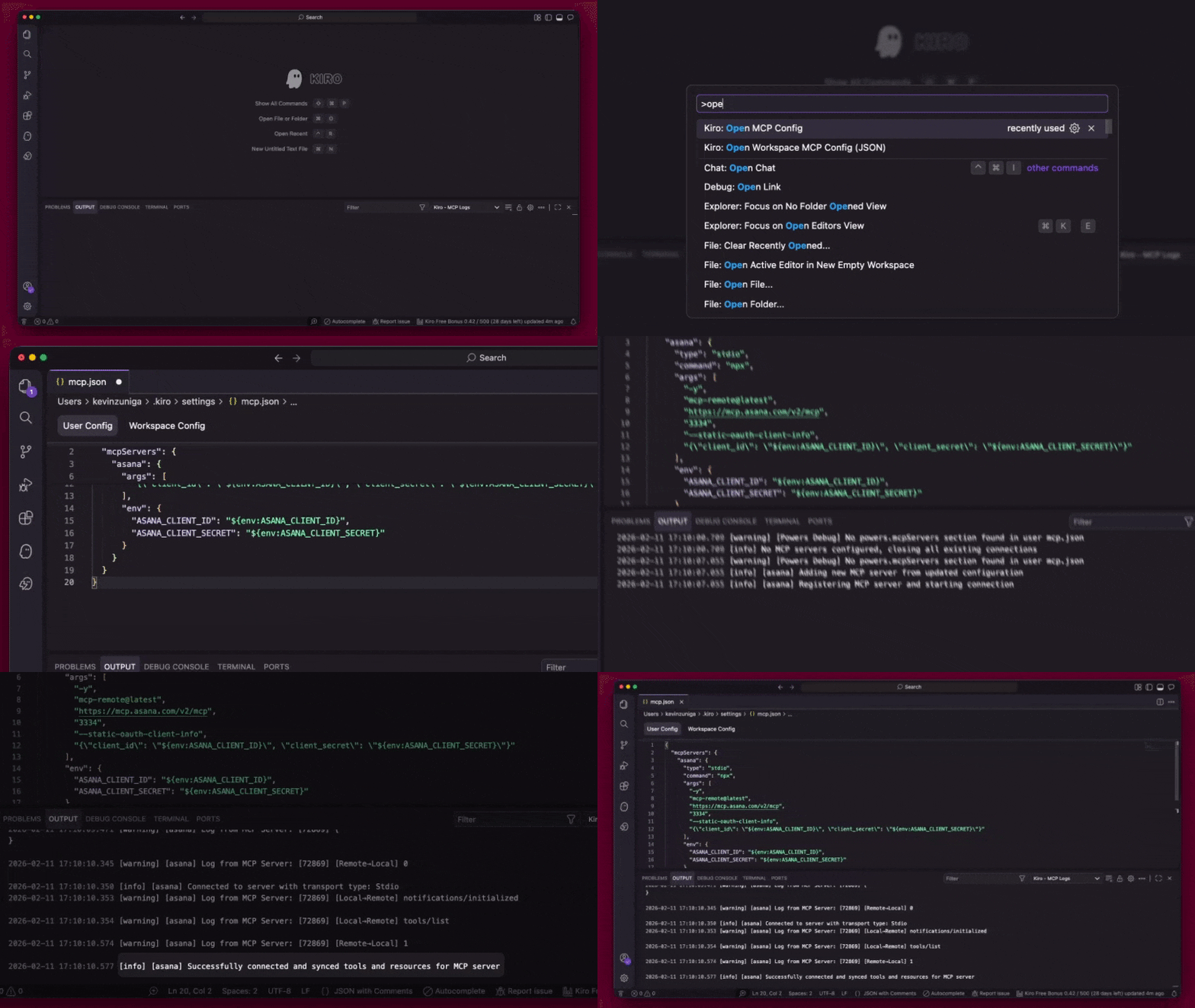
- Your browser will open to Asana's authorization page
- Sign in to Asana if not already signed in
- Review the permissions and click "Allow access"
- You'll be redirected to
localhost:3334and the browser will show a success message - Return to Kiro
Authentication is now complete and tokens are stored in ~/.mcp-auth/.
4. Test the connection
Open a new chat session in Kiro and ask about your Asana projects, for example: Show my Asana tasks due this week.
References
V1 server deprecation
The V1 Beta MCP server
https://mcp.asana.com/sseis deprecated and will shut down on 05/11/2026. Learn more and get migration steps in this changelog post
Some clients such as Replit or Jetbrains doesn't support V2 OAuth pre-registration yet, you can continue using V1 until the deprecation date.
Additional resources
Updated 3 months ago