
Dynamic value inputs
Dynamic value inputs let a Run Script action read data from the task that triggered the automation without hardcoding values or making extra API calls to look them up. You declare named inputs in the action's configuration, bind each one to a field from the triggering context (for example, the task's name or assignee), and Asana resolves those bindings at run time and passes the values into your script.
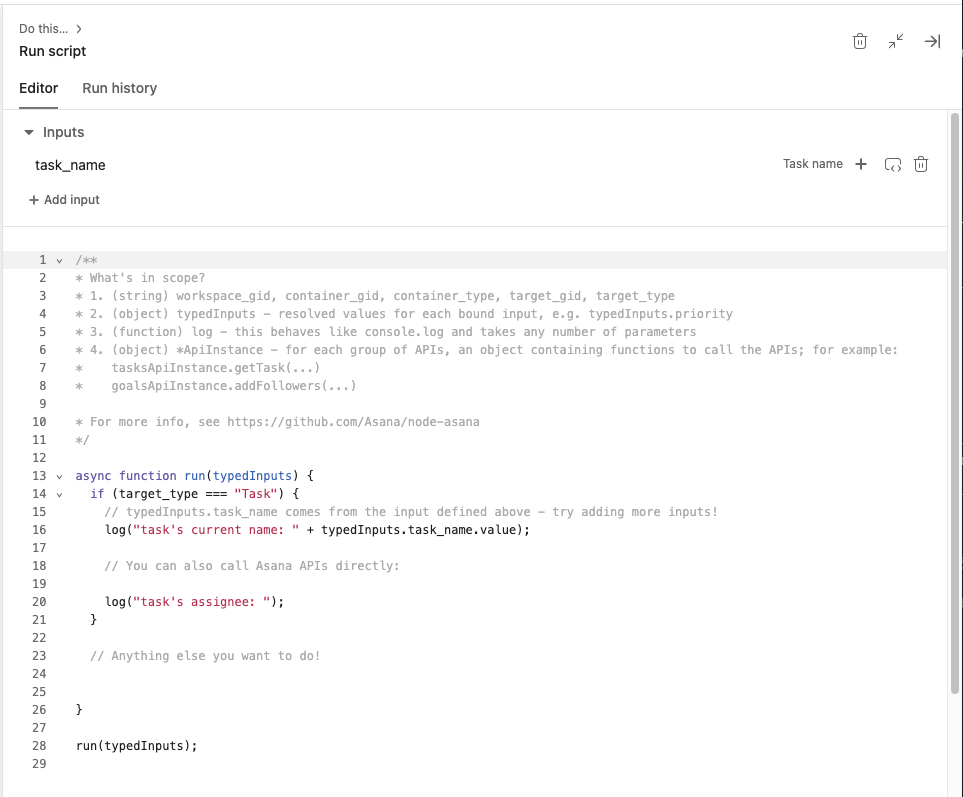
How inputs map to your script
Each input is a named binding with three parts:
- Name: the identifier your script uses to reference the value (for example,
task_name). - Binding: the field from the triggering work context that the value is resolved from (for example, "Task name").
- Return type: the type of the resolved value your script receives.
At execution time, resolved values are available to your script through the typedInputs object. For an input named task_name, your script reads the value as:
typedInputs.task_name.valueThe .value property applies to string and number bindings, such as task_name. Bindings that return a date, a user, or a custom property option expose their resolved value under a different property name. See Reading a resolved value in your script for the property that goes with each return type.
Adding, editing, and removing inputs
Inputs are managed in the Inputs section of the Run Script action's configuration panel, above the script editor.
- In your automation, open the Run Script action.
- Under Inputs, click + Add input and give the input a name.
- Use the picker to bind the input to a field from the triggering context (for example, "Task name").
- Reference the input in your script via
typedInputs.<input_name>, using the property that matches the input's return type. - Publish the automation, trigger it, and check Run history to confirm the input resolved as expected.
Only the automation owner can edit the script and its inputs. If you're not the owner, you need to use the ownership transfer option shown in the configuration panel.
Default template and default input
When you create a new Run Script action, Asana seeds the editor with a default script template and pre-populates one input: task_name, bound to the task's name, returned as a string. This gives you a working example of the input pattern from the first open. The default is only seeded on a brand-new action (empty script and no inputs); clearing your script later won't re-insert it.
The template demonstrates the string case only. If you add a binding with a different return type, read it using the property listed in Reading a resolved value in your script.
Supported bindings and return types
Inputs can be bound to fields from the triggering task or the automation context. Some bindings are inherited from the rest of the automation rather than from the Run Script action itself. Incoming web request payload properties, app trigger payload properties, and the outputs of earlier workflow steps appear in the picker only when the automation's trigger or a preceding step makes them available. They are not specific to Run Script actions.
AI-resolved inputsAI-resolved inputs behave the same as any other input. They go through the same binding validation and the same injection path as a plain field lookup, with no separate loading state and no distinct failure mode. The only difference is the label shown in the picker (for example, AI (Text) or AI (Number)).
Reading a resolved value in your script
typedInputs.<input_name> is an object whose shape depends on the input's return type. Read the resolved value from the property that matches:
| Return type | Property to read | Resolved value |
|---|---|---|
| String | .value | string | null |
| Number | .value | number | null |
| DateTime | .iso8601 | ISO 8601 string | null |
| User | .gid | string | null |
| User (AI-capable) | .gid, .user_like_type | string | null, "domain_user" | "ai_teammate" | null |
| Enum Option | .gid, .name | string | null |
Every input object also carries a .type property identifying its return type ("string", "number", "datetime", "domain_user", "user_like", or "enum_option"). You can branch on it if you want a script to handle more than one shape.
Reading .value on a date, user, or custom property option input returns undefined, not the resolved value.
Two shapes for user bindingsUser bindings resolve to one of two shapes depending on the field you bind to, and the difference matters if AI Teammates can appear in that field.
A plain User binding only resolves actual people. If the field holds an AI Teammate,
.gidcomes back asnull— the input resolves successfully, it just doesn't carry the teammate.A User (AI-capable) binding resolves both, and
.user_like_typetells you which you got:"domain_user"for a person,"ai_teammate"for a teammate. Read.gidthe same way in both cases.If your automation runs in a workspace where AI Teammates can be assigned, prefer the AI-capable binding and check
.user_like_typebefore treating a.gidas a person.
Handling missing values
Your script should treat every resolved value as potentially null. There is no separate error property to check.
- The binding couldn't be resolved. Your script still receives the object for that return type, with its value property set to
null— for example,{ type: "datetime", iso8601: null }. - The binding uses an unsupported return type. Only the return types in the table above are supported. A binding to a field of any other type arrives as
{ type: "string", value: null }rather than raising an error, so a script that silently readsnullmay be bound to a field that can never resolve. If an input is alwaysnull, check its binding's return type first. - Dynamic value inputs aren't available in the domain.
typedInputsis not defined at all, and referencing it throws aReferenceErrorthat fails the run. This is distinct from anullvalue — see Availability. Scripts that need to run in both cases should guard withtypeof typedInputs !== "undefined".
Constraints and publish requirements
- Input names must be unique within the action.
- An action can have at most 10 inputs. Once you reach 10, + Add input is disabled.
- Input names must start with a letter and can contain only letters, numbers, and underscores. A leading underscore is not allowed.
- Reserved names can't be used, because they may collide with globals that Asana sets in your script's scope:
typedInputs,log,workspace_gid,container_gid,container_type,task_gid,target_gid,target_type,project_gid. Some of these are only in scope for certain triggers, but all of them are reserved regardless. - Every input must be bound to a field. An unbound input disables the automation's Save / Enable button.
The automation's Save / Publish button is disabled when any of the following is true:
- The script has syntax errors.
- You aren't authenticated with the app the script runs as.
- You aren't the owner of the automation.
- An input is unbound, or its binding is incompatible with the input's return type.
These constraints are enforced through disabled controls and reverted fields rather than through error messages. If + Add input is greyed out, you're at the 10-input limit; if the automation can't be saved, work through the list above.
Availability
Dynamic value inputs are configured in the Asana web app. They are not available on mobile, and Run Script configuration (including inputs) is not exposed through the public REST API.
Dynamic value inputs also require the AI Studio add-on, in addition to the plan requirements for Script Actions. If a user's AI Studio builder access is restricted, the Inputs section is unavailable. Access is restricted when the organization has turned off AI or the user lacks permission to create automations, or when the domain doesn't have the AI Studio entitlement.
The feature is also rolling out progressively. Where it isn't yet enabled, the Inputs section is hidden and typedInputs is not injected into the script at run time — an existing script that references it will fail with a ReferenceError rather than receive null values.
Updated 29 days ago